Sublimetext Intro
Contents
Since changing the main code editor to Sublime Text, the efficiency of writing code has been significantly higher. Recently, I started trying to recommend this editor to my friends.
1. Advantages of Sublime Text
Cross-platform;
Lightweight and scalable: There are a large number of plug-ins that users can choose to install (the
Emmetplug-in is recommended first).Support syntax highlighting for almost all mainstream programming languages;
Code automatic completion, supporting code snippets (Code Snippet);
minimapin the upper right corner: used to view annotations, quickly drag, and quickly locate;Quickly jump to different files/methods/functions: supports fuzzy matching;
Quickly switch between
TabandSpace;Format code;
2. Install Sublime Text
- Download the installation package:
Sublime Text official website address: https://www.sublimetext.com/ Select the corresponding installation package to download and install according to your system. The current stable version is Sublime Text 3;
- Install Package Control:
Before downloading plug-ins, you need to install Package Control, which is a control component used to manage and download plug-ins. Package Control official website installation address: https://packagecontrol.io/installation
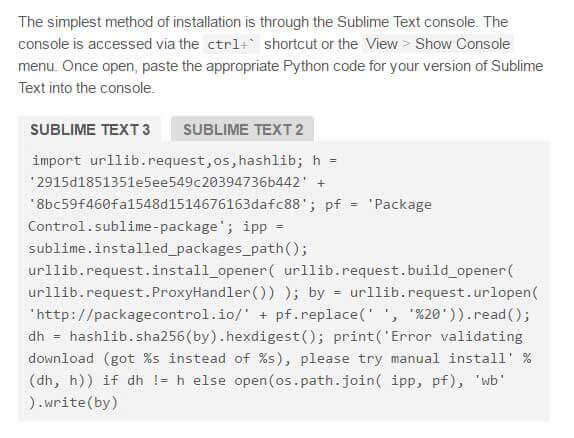
- Use the shortcut key
ctrl+`` or theView>Show Console` menu to open the console, then press Enter to let it install.
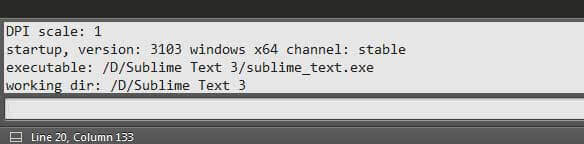
- Select and copy the corresponding version code according to the version of Sublime Text;
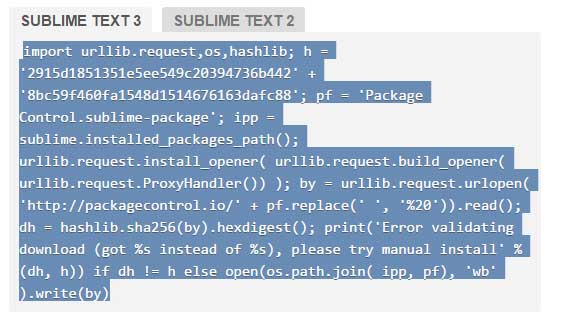
- Paste it into the console input box and press the
Enter key, and the plug-in management package will enter the downloading and installation state (it may take a while);
- Customize the installation of various plug-ins:
At the Package Control official website address: https://packagecontrol.io/ you can see various plug-ins and their download rankings. If you find the one you are interested in, download it and try it out.
The download and installation method is as follows: (windows platform)
- Press
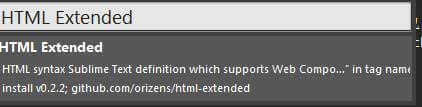
Ctrl+Shift+Pto bring up the command panel, enterinstall, bring up theInstall Packageoption and press Enter, a screen like this will appear,
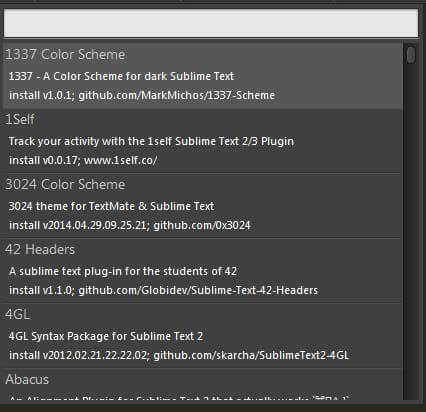
- Then enter the name of the plug-in you want to download, such as:
HTML Extended
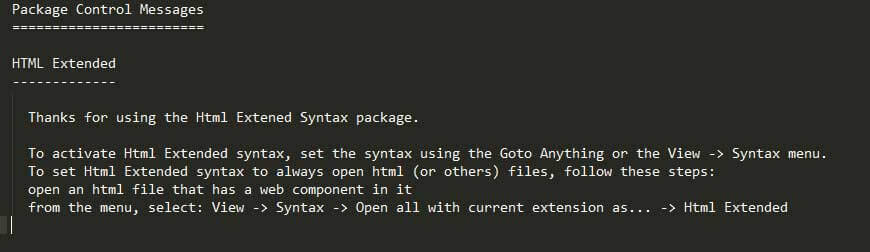
- After the download and installation is completed, a file similar to this will pop up, indicating that the plug-in has been successfully installed.
Or a prompt for successful installation in the lower left corner:

3. Recommend several useful plug-ins:
Emmet: Directly generate a large piece of code through simple commands.
ConvertToUTF8 (convert to utf-8 format): By default, Chinese in gbk encoding format will become garbled characters. This plug-in can implement automatic conversion.
JsFormat: Format js code. It can restore the js code that has been compressed and difficult to read on other people’s websites.
HTMLBeautify: Format HTML.
Hasher: symbol escape.
TrailingSpaces: extra space mark.
SideBarEnhancementS: Sidebar enhancements.
ChineseLocalization: Chinese plug-in.
4. Commonly used shortcut keys (under Windows platform):
Ctrl + Shift + NCreate a new window;Ctrl + WClose the window.Ctrl + Ncreates a new label;Ctrl + Wcloses the current label;Ctrl + Shift + Trestores the just-closed label.Alt + Shift + 2split the screen left and right;Alt + Shift + 8split the screen up and down;Alt + Shift + 5split the screen up, down, left and right into four screens.Ctrl + Numeric Keysjumps to the specified screen;Ctrl + Shift + Numeric Keysmoves the current screen to the specified screen.
ctrl+1 changes back to one screen display.
F11switches to normal full screen;Shift + F11switches to interference-free full screen.Ctrl + Pwill list all currently opened files, click on a file to jump quickly;Ctrl + RFor md files, the outline will be listed.
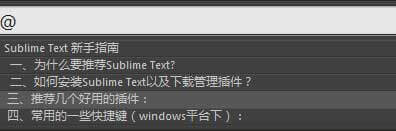
Ctrl + Fbrings up the search box to search;Ctrl + HreplacesCtrl + Jmerges the selected areas into one line;Ctrl + Shift + Lcan scatter the currently selected areas and edit them simultaneously:Multi-line cursor (can edit multiple lines of code at the same time):
Ctrl + Dselects the word where the current cursor is located and highlights all occurrences of the word, andCtrl + Dagain selects the next position where the word appears. In the process of multiple word selection, useCtrl + Kto skip, useCtrl + Uto go back, and useEscto exit multiple editing.Ctrl + Enteradds a new line below the current line and jumps to that line;Ctrl + Shift + Enteradds a new line above the current line and jumps to that line.Ctrl + Eautomatically generates code snippets (after installing the Emmet plug-in).Ctrl + shift + DCopy the contents of the current line to the next line and jump to that line.